
Many people find their phone still short of space even after deleting photos, videos and unwanted files, especially when data has been carried from phone to phone for years. Citing a report by the technology site Engadget, Desh Rupantor set out several ways to free up space on Android phones. Setting names and locations can differ by brand and Android version.
The first step is removing unused apps. Under Device care, then Storage and Apps, the settings show how much space each app takes, and unneeded ones can be uninstalled. An app you may want later can be archived instead, keeping its login and settings so it can be downloaded again. Turning on 'Automatically archive apps' under General in the Google Play Store settings archives rarely used apps when space runs low; according to Google, this can free up to about 60 per cent of an app's storage.
Photos and videos take the most room. It is best to back them up to Google Photos before deleting; every Google account gets 15 GB free, shared between Photos, Drive and Gmail. The report gives Google One prices of $2 a month for 100 GB and $3 for 200 GB, though prices vary by region. After backing up, 'Free up space on this device' in Google Photos removes the phone's copies while keeping them in the cloud.
Next, look under the storage section of Device care for 'Duplicate files' and 'Large files'; old downloads also take a lot of room. Check that a file is not needed before deleting it, as documents or work files deleted by mistake can be hard to recover.
To clear the cache that builds up in social media and video apps, go to Apps in settings, choose the app, open Storage and tap 'Clear cache'. 'Clear data' is different and can erase the app's saved information and settings.
Finally, empty the trash. Deleted photos and files often sit in the trash of the gallery or file manager for a set period, still taking up space; once you are sure they are not needed, delete them permanently.
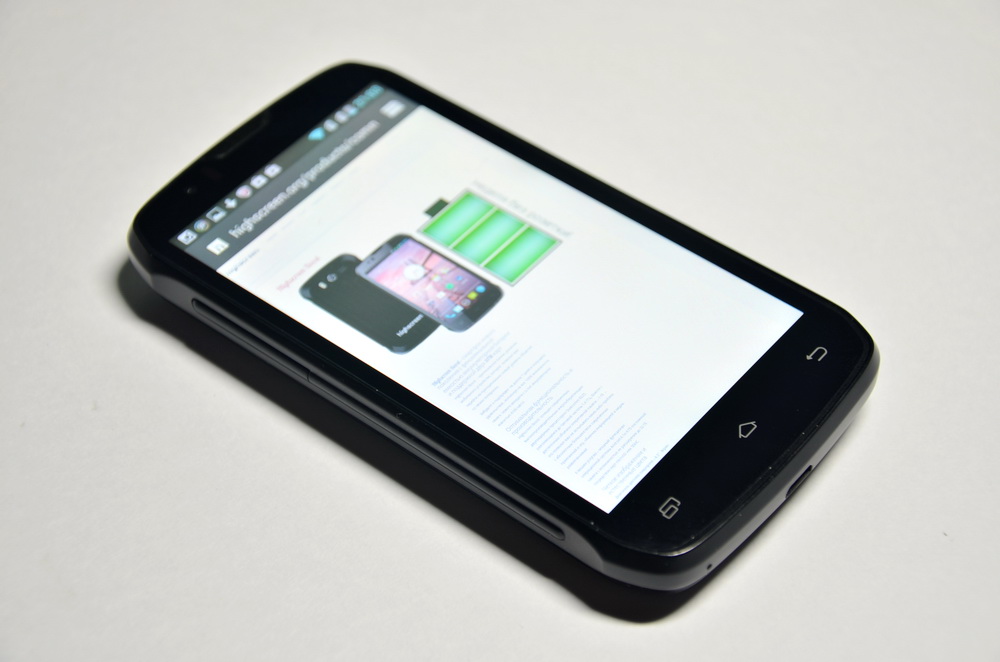
Photo: Sergey solom / Wikimedia Commons (CC BY-SA 3.0)
Source: Desh Rupantor



Comments
(0)